 AutoSplitter


Photo Colorization with AutoSplitter
 Zoltán Péter
Published: October 30, 2026
What Is Photo Colorization?
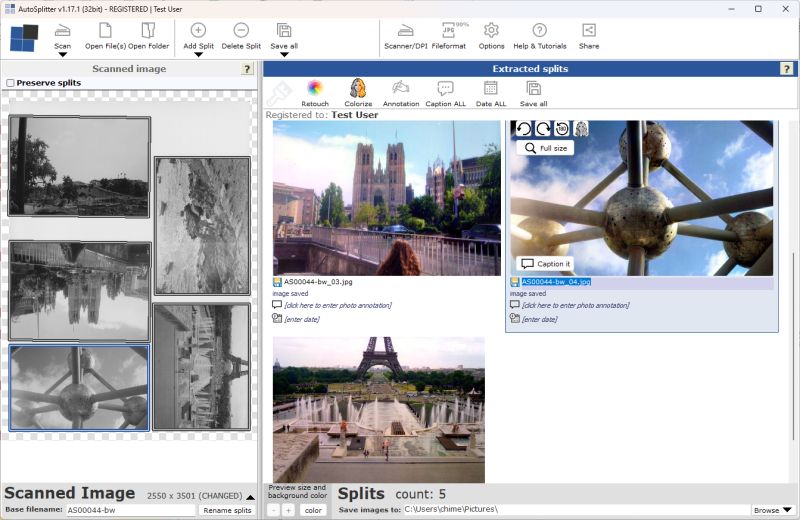
Photo colorization adds color to a black-and-white photograph. It dates back to the 19th century, when people hand-painted photographs with pigments and dyes. Later, colorists added color to film one frame at a time. Today, software and AI can estimate colors from what an image contains, and a person can review or refine the result. Unless an original color reference is available, these colors are educated guesses—not certain historical facts.
You may remember the clothes people wore at a family reunion in the 1980s. Software, of course, does not have that memory.
How to Colorize Photos in AutoSplitter
Photo colorization is available starting with AutoSplitter v1.17.1; earlier versions do not include it.
There are two ways to start:
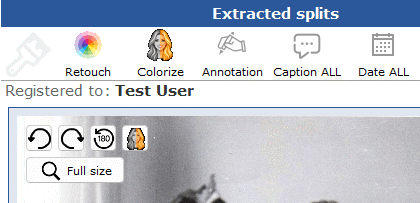
- Click the Colorize button above the extracted photos. AutoSplitter quickly analyzes the detected photos, chooses which ones need colorization, and processes them.
- To colorize just one photo, hover over it in the extracted photos panel. Its smaller Colorize button appears beside the rotation buttons; click the button with the half-gray face icon.
Undo colorization: Hover over a colorized photo to show its grayed-out Colorize button, then click it to restore the original.
Colorization can be undone accidentally. Many edits to a detected photo make AutoSplitter crop it again from the original scan, replacing the colorized copy. Adding metadata or changing the output file format does not remove colorization, but most other changes do.
For that reason, colorize photos as the last step, just before clicking Save All.
How to Improve Colorization Results
These suggestions can help:
- Make each photo upright before colorizing it. The colorizer's neural network is trained to recognize people and objects in upright photos, so correcting sideways or upside-down images can help.
- Image quality matters. Blurry photos usually look less convincing, and colorization cannot restore details that are out of focus. Faded or low-contrast photos can often be improved with Retouch options. Try fade compensation or revitalize colors to make an image more vibrant and help the colorizer estimate colors.
- Use retouching effects carefully. A few effects at modest settings often look more natural than many effects at once. Colorization uses the retouched image as its input, so too much contrast, sharpening, or HDR can hurt the result—even if you colorize afterward.
Other Colorization Questions
What technology powers colorization?
AutoSplitter uses the publicly available DDColor model hosted on ModelScope. It can recognize people and many everyday objects, then estimate suitable colors for different parts of an image.
Are other colorization models available?
Not as of version 1.17.1. Different models can work better on different kinds of photos, so a choice could be useful. This may be considered for a future release.
Is my privacy preserved when I colorize photos?
Yes. Photos are processed locally, they do not leave your computer.
Are the results random?
No. Repeating colorization on the same image produces the same result. Even a small change, such as adjusting the crop, can affect the colors, but changing the crop just to get a different result is probably not worthwhile.
Does colorization work on nature and architecture photos?
Yes. It can handle people, buildings, nature scenes, and landscapes. As with any photo, results vary with the image.
Can I keep both the original and colorized photos?
Not as of version 1.17.1. This may change in a future release; suggestions for how it should work are welcome.
Can I tell the colorizer to change specific colors in a photo?
No. There is currently no way to specify colors for individual details, and this is not planned for the foreseeable future.
Does colorization work in the AutoSplitter command-line version?
Not as of version 1.17.1. The command-line auto-cropper does not currently include colorization, although a future update could change that.
Can colorization be made faster?
Colorization is not the fastest feature. Performance improvements are being explored, and future versions may be optimized. Possible approaches include:
- Colorizing the whole input scan at once: This might work reasonably well if every photo is black and white, but the colorizer generally does better on individual photos, so combined processing may look less pleasing.
- Updating the source scan with the colorized photo: This could preserve the result, but would make it much harder to restore the original or colorize again after changing retouch settings.
- Processing multiple photos in parallel: This could reduce total time, but the colorizer uses a lot of memory and CPU. Several simultaneous jobs could heavily load even a powerful computer.
Order of Photo Operations
After AutoSplitter detects and crops a photo, it applies retouching first, if enabled. Colorization runs when requested, so it always uses the retouched photo as its input. This can improve the result, as described above.