 AutoSplitter


Auto crop scanned images with command line application (CLI)
Published: October 12, 2026

Command line tool to auto crop your pre-scanned images
This feature has been added in v1.16.2. People have requested this feature long ago, but the auto-cropping feature's accuracy wasn't suitable.
Today I think it is.
How to access CLI auto-crop
AutoSplitterCLI.exe sits in the same directory as the main program AutoSplitter.exe - find it via your command icon's "Open file location" feature.
Typical install location on systems with admin privileges is C:\Program Files (x86)\Chimera\AutoSplitter\AutoSplitterCLI.exe
Alternatively you can launch it from the UI below Options / Command line mode. This menu option will exit the UI and will launch a command line interpreter with the CLI at hand.
How does CLI image cropping work?
The traditional mode (UI mode) of the application and the CLI work hand-in-hand, but they can never run in parallel. You must exit the UI mode to launch CLI mode.
You have these command line options available to process your scans:
- input filename: Supply a single pre-scanned image's name with full path to auto-crop it.
- input foldername: Supply a folder name full with pre-scanned images to process them. Note: file access not recursive.
- -outputfolder: Output folder to store your cropped photos. Folder must exist. Optional parameter: the output folder defined in the UI mode application will be used by default.
- -createfolder: CLI tool will create the output folder if you add this parameter.
- -force: Multifile detections by the CLI will start a batch detection session - you can check, review and modify the batch results in the UI mode of the application after a CLI run. This is optional of course, but you need to supply this parameter to willingly destroy the batch review session if one exists.
- -overwrite: Add this option to overwrite files in the output folder.
What CLI will actually do?
It will work just as if you have opened these files/folder in the UI version of the program. It will use Retouch options if they are enabled. It will save files according to file output format settings (yes, if you have secondary format enabled, 2 files are going to be saved per photo detection).
Command line terminal will show processing results: input image name with a count of detected photos.
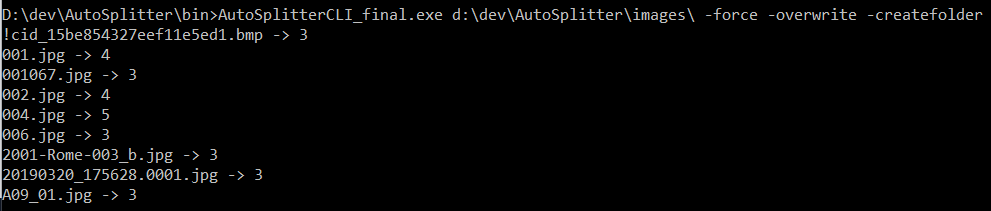
Of course captions, metadata, dates will not be added. Photos will not be rotated upright if they are scanned upside down, etc.
This is a very new feature at this point, feel free to open a feedback ticket to post your requests or complaints regarding this feature.
Start building your photo processing workflow with AutoSplitter CLI :)