 AutoSplitter


Select output file format
Published: September 19, 2026
Supported image file formats
AutoSplitter supports these file formats at the moment:
| Can be opened | Can be saved | Metadata support | |
| JPEG |  | | DPI info + captions |
| PNG | | | DPI info + captions |
| TIF | | | DPI info + captions |
| Multipage TIF | |  | DPI info + captions |
| GIF | | | none |
| BMP | | | none |
| | none |
Secondary fileformat option: dual photo output
You can select a secondary fileformat as well. This means that all your cropped photos are going to be saved TWICE - in two different file formats. Dual fileformat is used by all processing methods: batch review and command line mode will also work with the dual fileformat setting.
How to select output file format
File format button or Options button / Preferences / File format tab will launch the file format selection dialog.
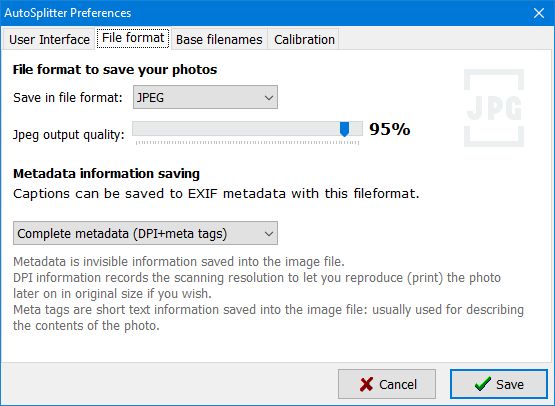
Choose the fileformat from the dropdown list. In case of JPEG output you can also adjust quality. You have separate dropdown lists for main and secondary fileformat. Secondary format is optional.
You can also define wheter you want to save metadata inside the image file. Metadata is extra information that might come handy for further processing of image files. See "Metadata saving" tutorial section for more information.
You can disable metadata saving partially or completely in this dialog as well. DPI information is useful for reproducing the photo in print. Metatag information holds the photo caption if you enter one.
PDF output can be done as one PDF per photo or all photos in a scan unified into a multipage PDF file.
When you scan multiple photos at once with AutoSplitter, choose a format that fits how you plan to use the output. See metadata saving and usage for embedded information, and how to scan photos for the full digitizing workflow.